


Microsoft's big errors unsubscribing users from emails: Are you making it easy for people on YOUR list to opt out?
In general, I think companies have gotten a lot better at managing their email unsubscribes in the past couple years. But there's always room to do better -- and there are still plenty of emailers who aren't doing a good job.
I was just reminded of this fact in the past week. I got an email from Microsoft that had an amazingly complex unsubscribe process. (I'm saying this not to pick on Microsoft -- because I realize it's a huge company with so many different email campaigns taking place, and probably tens of millions of people on its lists.) But I think there's plenty we can learn from Microsoft's poor process. Are you doing any of these things with your campaigns?
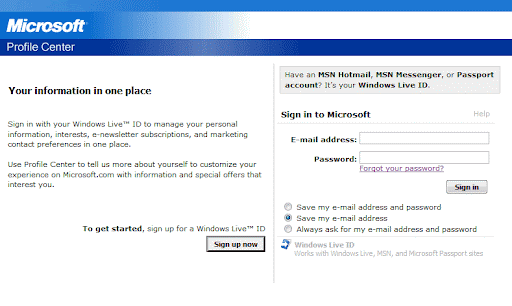 So to begin, I clicked on the unsubscribe link at the bottom of the message. Instead of taking me to a page where I could unsubscribe quickly, I get a login page for Microsoft Passport (see screenshot #1).
Best practice: Don't force your users to log in for an
unsubscribe request. When they click the link in the email, take them straight to the unsubscribe page.
They're expecting me to guess which email address I signed up for this newsletter with (I have several!), and they didn't bother to mention which one it was in the footer of their email.
Best practice: Always put a "You are subscribed as user@email.com" in the footer of your message to make it easier for your reader.
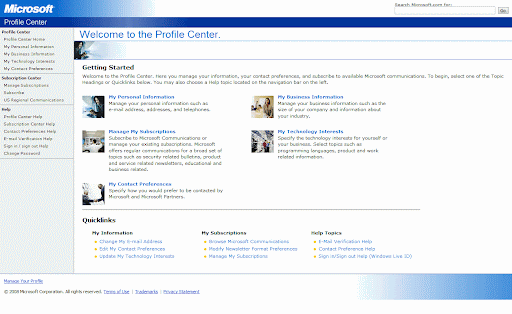 After finally figuring out which email address and which password they were expecting me to put in, I got to a page with a ton of information (see screenshot #2). Where do I click to unsubscribe? Do I choose "My Personal Information" where it says my email address is kept? No, here's a "Manage My Subscriptions" link below that, where it says I can change my subscriptions. That must be it. But wait...right below that it says "My Contact Preferences" where I can change how Microsoft contacts me. This email was from Microsoft. Oh, so confused! And then they add another list of nine quick links at the bottom, which only adds to the confusion.
Best practice: Once you get the user to the unsubscribe page, make it obvious where they're supposed to go to complete the process. They're not clicking the Unsubscribe link because they want to learn more about your company or because they want to change their technology interests. When they click Unsubscribe, they want to unsubscribe.
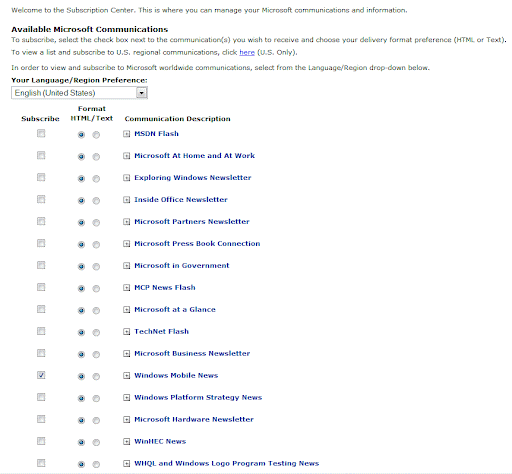 Once I figured out the right choice, it took me to a huge list of at least 30 newsletters and mailing lists, maybe more (view screenshot #3). The list was so long that I had to scroll to see the full thing. I wasn't signed up for most of these newsletters or lists, so I had to search through the list to find the single checkbox that was checked.
Best practice: Show the user what they're subscribed to, quickly and easily. Don't make them guess. Don't make them hunt.
I'm almost there, right? I found the single checkbox that I need to uncheck. Now I'll uncheck it, scroll down to the bottom of the list, and hit the Update button. That should do it, right? Ummm...at least with Microsoft's interface, I'm not sure. If you take a look at screenshot #4, you'll notice it looks remarkably similar to #3. There's no confirmation anywhere saying "Your preferences have been updated" or anything like that.
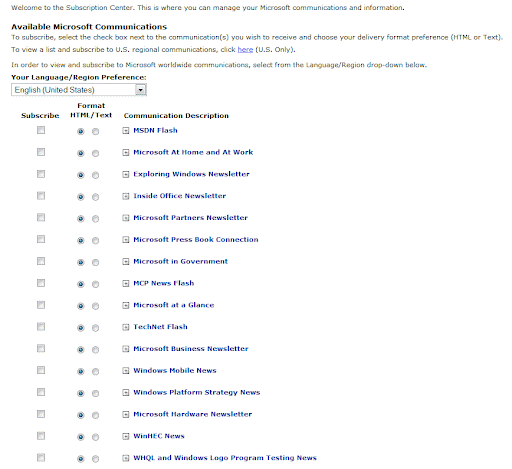 Best practice: Once the user takes an action on your unsubscribe or newsletter preferences page, make it obvious they've taken an action. Ideally this would be a whole new screen saying "Your preferences have been updated" that would also give them a list of the changes that have taken place, e.g. "You have been unsubscribed from Windows Mobile News." If you can't do that for whatever reason, it's ok to take them back to the same page they just submitted, as long as there's a big, noticeable message that says "Preferences updated" or "You have been unsubscribed." It should be at least 1 1/2 times the size of the next largest font on that page, and it should be in a bright color or some other treatment that makes it impossible to miss.
Best practice: Email confirmation. Send your user an email confirming they've changed their preference or unsubscribed. That way they're sure the action has been processed. (I know some people aren't a fan of the email confirmation for unsubscribes...thinking that it's stupid to send someone an email immediately after they say they don't want any more email from you. Personally when I unsubscribe, I don't mind these messages, and I think it's perfectly acceptable. I'd recommend following one of my favorite rules for communication: Tell them what you're going to do, do it, then tell them what you just did.)
There are certainly many more email unsubscription best practices, and these are just a few. When thinking about your unsubscribe processes, here's what I recommend:
1) Read CAN-SPAM closely (including the most recent rulings from May 2008) and make sure you're complying to the letter of the law.
2) Read CAN-SPAM a second time and make sure you're not just complying with the letter of the law, but also the spirit of the law.
3) Go a step beyond the spirit of the law. Make your unsubscribe process so quick and painless that it's almost pleasant. Legitimate companies comply with the law. Good companies uphold the spirit of the law. And the best companies give the customer an experience so good that they make the customer say WOW!
I was just reminded of this fact in the past week. I got an email from Microsoft that had an amazingly complex unsubscribe process. (I'm saying this not to pick on Microsoft -- because I realize it's a huge company with so many different email campaigns taking place, and probably tens of millions of people on its lists.) But I think there's plenty we can learn from Microsoft's poor process. Are you doing any of these things with your campaigns?
 So to begin, I clicked on the unsubscribe link at the bottom of the message. Instead of taking me to a page where I could unsubscribe quickly, I get a login page for Microsoft Passport (see screenshot #1).
Best practice: Don't force your users to log in for an
unsubscribe request. When they click the link in the email, take them straight to the unsubscribe page.
They're expecting me to guess which email address I signed up for this newsletter with (I have several!), and they didn't bother to mention which one it was in the footer of their email.
Best practice: Always put a "You are subscribed as user@email.com" in the footer of your message to make it easier for your reader.
 After finally figuring out which email address and which password they were expecting me to put in, I got to a page with a ton of information (see screenshot #2). Where do I click to unsubscribe? Do I choose "My Personal Information" where it says my email address is kept? No, here's a "Manage My Subscriptions" link below that, where it says I can change my subscriptions. That must be it. But wait...right below that it says "My Contact Preferences" where I can change how Microsoft contacts me. This email was from Microsoft. Oh, so confused! And then they add another list of nine quick links at the bottom, which only adds to the confusion.
Best practice: Once you get the user to the unsubscribe page, make it obvious where they're supposed to go to complete the process. They're not clicking the Unsubscribe link because they want to learn more about your company or because they want to change their technology interests. When they click Unsubscribe, they want to unsubscribe.
Best practice: Show the user what they're subscribed to, quickly and easily. Don't make them guess. Don't make them hunt.
I'm almost there, right? I found the single checkbox that I need to uncheck. Now I'll uncheck it, scroll down to the bottom of the list, and hit the Update button. That should do it, right? Ummm...at least with Microsoft's interface, I'm not sure. If you take a look at screenshot #4, you'll notice it looks remarkably similar to #3. There's no confirmation anywhere saying "Your preferences have been updated" or anything like that.
 Best practice: Once the user takes an action on your unsubscribe or newsletter preferences page, make it obvious they've taken an action. Ideally this would be a whole new screen saying "Your preferences have been updated" that would also give them a list of the changes that have taken place, e.g. "You have been unsubscribed from Windows Mobile News." If you can't do that for whatever reason, it's ok to take them back to the same page they just submitted, as long as there's a big, noticeable message that says "Preferences updated" or "You have been unsubscribed." It should be at least 1 1/2 times the size of the next largest font on that page, and it should be in a bright color or some other treatment that makes it impossible to miss.
Best practice: Email confirmation. Send your user an email confirming they've changed their preference or unsubscribed. That way they're sure the action has been processed. (I know some people aren't a fan of the email confirmation for unsubscribes...thinking that it's stupid to send someone an email immediately after they say they don't want any more email from you. Personally when I unsubscribe, I don't mind these messages, and I think it's perfectly acceptable. I'd recommend following one of my favorite rules for communication: Tell them what you're going to do, do it, then tell them what you just did.)
There are certainly many more email unsubscription best practices, and these are just a few. When thinking about your unsubscribe processes, here's what I recommend:
1) Read CAN-SPAM closely (including the most recent rulings from May 2008) and make sure you're complying to the letter of the law.
2) Read CAN-SPAM a second time and make sure you're not just complying with the letter of the law, but also the spirit of the law.
3) Go a step beyond the spirit of the law. Make your unsubscribe process so quick and painless that it's almost pleasant. Legitimate companies comply with the law. Good companies uphold the spirit of the law. And the best companies give the customer an experience so good that they make the customer say WOW!


0 comments:
Post a Comment